

Power button of the Windows 10 computer may be used for the start and shutdown as well. The easiest and frequently used option of power button is to shut down, i.e. whenever the power button is pressed, it will shut down the computer. If your computer power button is set to perform some other task and you want to set the power button to shut down the computer, which is currently, running the Windows 10, you may do it at your end, easily, as it is just a few steps process. But you feel any difficulty, don’t hesitate to go through the tutorial.
Tutorial
Command Line: Right click Battery icon – Notification Area > Power Options – Choose what the power button does > System Settings – When I press the power button – select the desired action.
If you cannot follow the Command Line due to any reason, do see the step by step instructions, given blow:
Step by Step Instructions
1: Right click or tap the ‘Battery’ icon in the ‘Notification Area’ placed at the bottom right corner of the Windows 10 desktop. It will, instantly, open up the ‘Control Panel > All Control Panel Items > Power Options’ screen.
2: At the ‘Power Options’ screen, click or tap the ‘Choose what the power button does’ to open up the next screen of ‘Control Panel > All Control Panel Items > Power Options > System Settings’ screen.
3: At the ‘System Settings’ screen, see; the current setting of ‘When I press the power button’ is ‘Sleep’.
4: If you want to change the current setting of ‘Sleep’, just click it and it will open up a downward popup menu with following power options in it:
- Do nothing
- Sleep
- Hibernate
- Shut down
- Turn Off the Display
5: Select the desired action and click it. I selected the ‘Shut down’ and clicked it.
6: Now, to save the change for the future usage, click or tap the ‘Save changes’ button, placed at the bottom of the screen.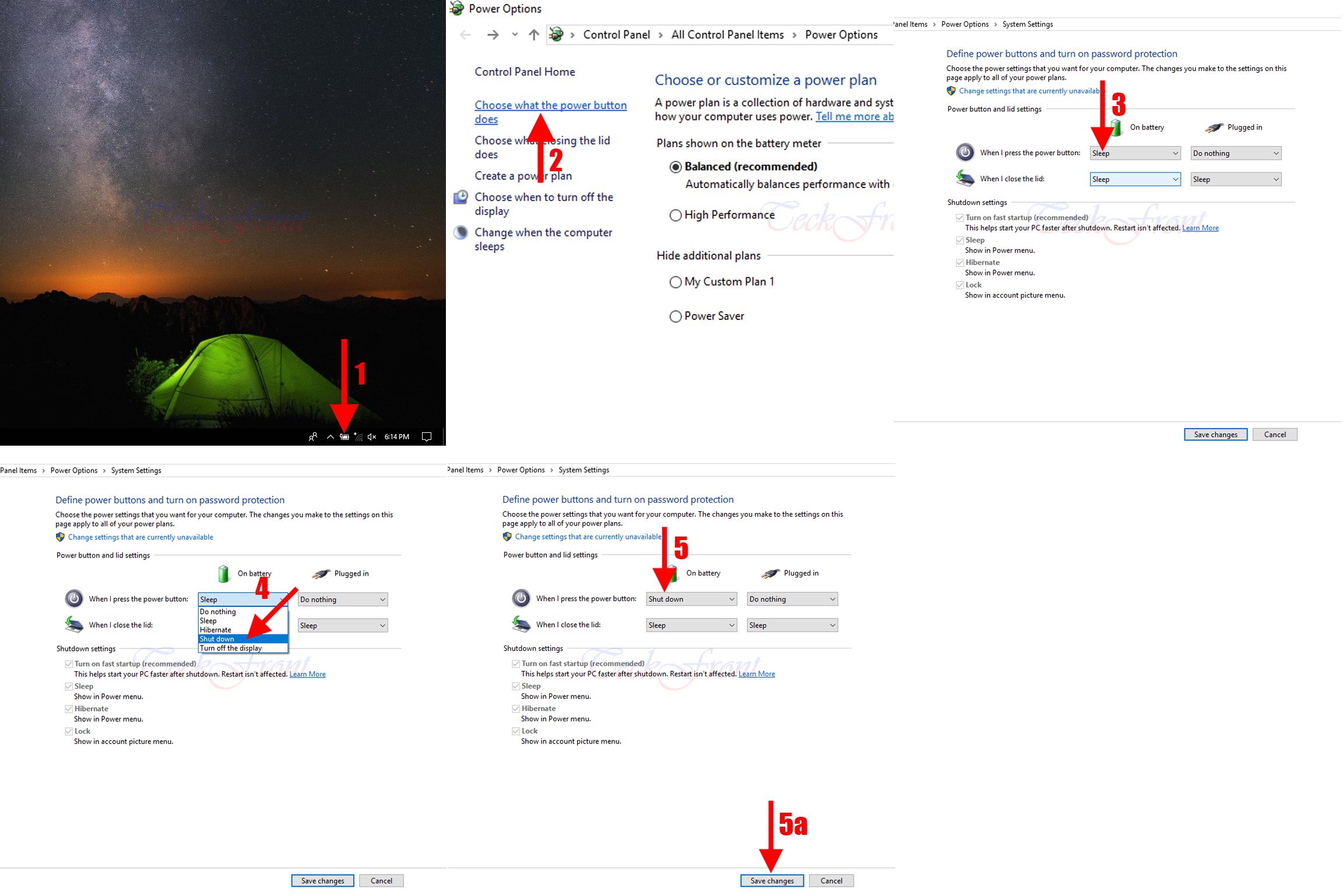
Now, onward, whenever the computer power button will be pressed, it will shut down the Windows 10.
That’s all!