

Summary
In the IT and AI era, the Internet Based Wi-Fi is playing the pivotal role for the smooth and efficient functioning of mobile phones. This is why; consumed Data is a great cause of financial drain for almost all the mobile phone users, particularly, when they are using the Internet based Wi-Fi to link the globe.
This is why; Android OS provides the typical feature and set up to check the usage of Wi-Fi, frequently to keep a check upon the usage of the Wi-Fi. In Android OS, the phone user may press just few icons to check the up to date usage details of Wi-Fi.
In this article, we have described the function of checking the Wi-Fi usage level in brief. See; Tutorial:
Command Line: Home Screen > Settings Screen > Connections > Data Usage > Data Saver > Turn On (Data Safer) > Choose the Vital Apps
See Tutorial
Step:1
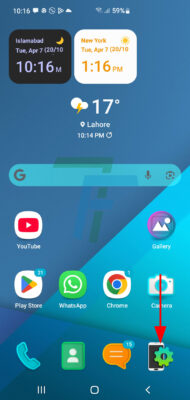
Press the Settings Screen Icon, currently placed at the bottom right corner of the Home screen, to open up the Settings screen.
Step:2
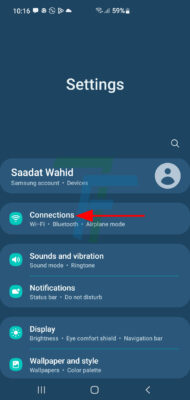
At the Settings Screen, press the Connections. It will open up the Connections screen.
Step:3
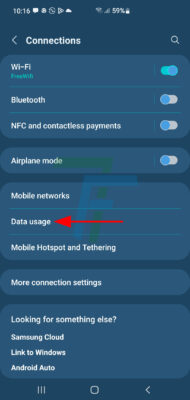
At the Connections screen, press the Data Usage feature to visit the Data Usage screen.
Step:4
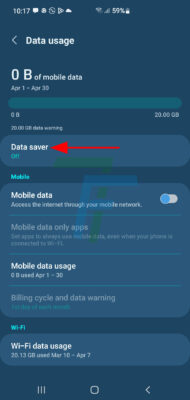
At the Data Usage screen, see; currently the Data Saver feature is Turned Off. Press it to open its functional screen.
Step:5
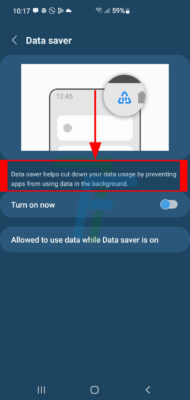
At the Data Saver screen, read the instructions given above the Data Saver Turn On switch, before Turn On.
Step:6
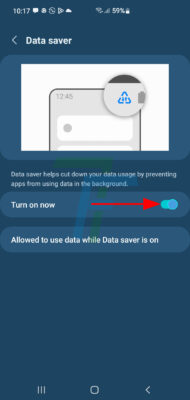
After reading the instructions, press the switch to Turn On / Activate the Data Saver.

Step:7
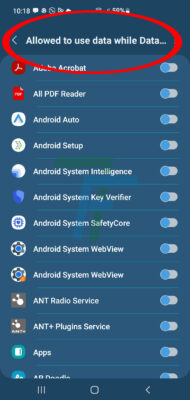
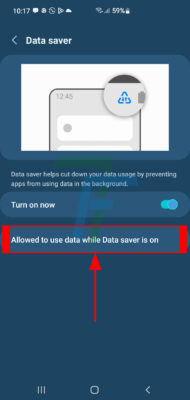
After turning on the Data Saver feature, it is time to read the instructions to choose / select the best apps which must be allowed to work even during the Data Saver function is On.
Press the feature to allow those apps to function during the Data Saver is Off.
Step:8
From this list of apps, currently installed and present in the Android OS of your mobile, select those apps which you think are important and necessary for the smooth functioning of your phone while the data saver is active and On.
Step:9
Select from the installed apps in your OS and turn them on.