

Summary
While a user is using the Android mobile phone away from his/her place, his / her major concern is the availability of the enough battery level to keep its connectivity, to run its different features and apps. The smooth functioning of the Android phone, like all other mobiles, depends mainly upon the availability of the high percentage of battery level in the Phone.
So, every user of the mobile phone needs to keep an eye on the battery percentage at the status bar of the phone.
If, currently, your Android phone is not displaying / showing the battery percentage, you may turn it on by few simple commands.
In this article, we have described the process in tutorial. Follow the instructions:
Command Line: Home Screen > Settings Screen > Notifications > Advanced Settings > Show Battery Percentage > Turn On > See; Battery Status at Status Bar
Tutorial
Step:1
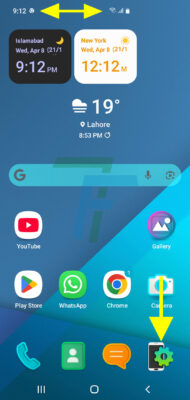
At the Status Bar of the Home Screen, see; the Battery Status / Percentage is not displayed / shown.
To show the Battery Status / Percentage at the Status Bar of the Android Phone, press the Settings Screen Icon, currently placed at the bottom right corner of the Home screen, to open up the Settings screen.
Step:2
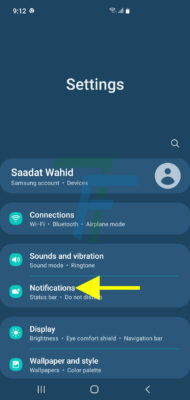
At the Settings Screen, press the Notifications to open up the Notifications screen.
Step:3
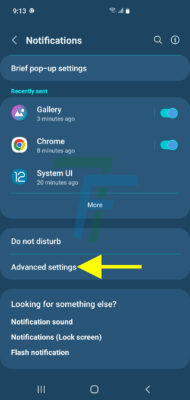
At the Notifications screen, press the Advanced Settings feature to visit the Advanced Settings screen.
Step:4
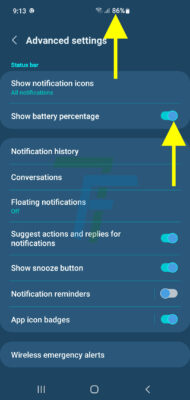
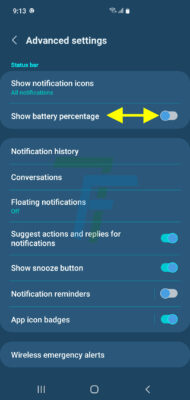
At the Advanced Settings screen, see; currently the show Battery Percentage feature is Turned Off. Press it to show the Battery Percentage at the status bar of the screen.
Step:5
When the Show Battery Percentage switch / button is turned on / activated, see; the Battery Percentage is immediately shown at the status bar of the screen.
Step:6
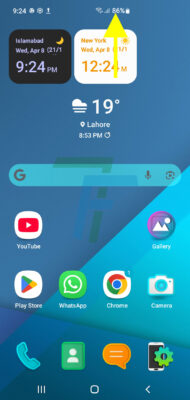
See; at the status bar of the Home screen, the Battery Percentage is also shown.