

Summary
Analysis of the battery status and miscellaneous activities of the Android phone battery is a major task which is typically performed regularly by almost all regular mobile phone uses.
Due to the importance of the process of frequent battery inspection, Android OS inducted a detailed process of battery charging level, various battery activities and status. These facilities of battery watch and control include; display of battery percentage at status bar, last battery charging date & time, duration of last battery charging, available battery for the upcoming period, battery usage, screen on time, screen off time display of battery functioning & current situation and many related activities.
In the lines below, many such battery related activities and the steps to approach them are described.
See Tutorial:
Tutorial
Step:1
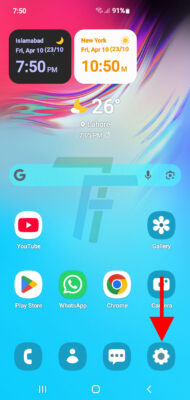
Press Settings Screen Icon on the bottom right corner of the Home Screen to open up the Settings Screen.
Step:2
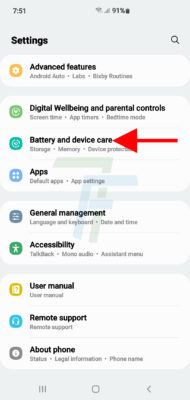
At the Settings Screen, scroll down to the ‘Battery and Device Care’ and press it. It will take you to the the Device Care Screen.
Activity:1
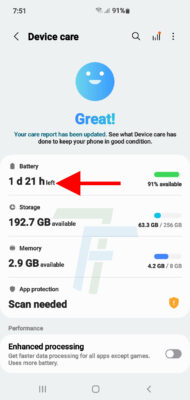
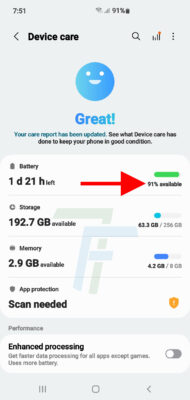
At the Device Care Screen, see; the first and immediate Activity of the Battery of Android phone.
This activity is displaying that available charging level of the battery can be used within the 1 Day and 21 Hours.
Activity:2
At the ‘Device Care Screen’, see the Activity:2 of the Android phone battery.
This activity is telling the user that, currently, 91% battery level is available which can be used for various activities and functions of the Android Phone.
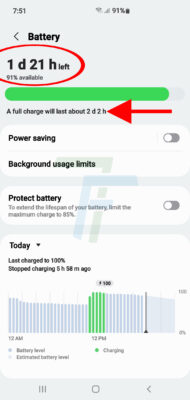
Now, press the Battery button to open up the ‘Battery’ Screen.
Activity:3
Activity:3 tells the user that if the battery is fully charged, the phone will continue to operate almost for 2 days and 2 hours period.
Activity:4,5
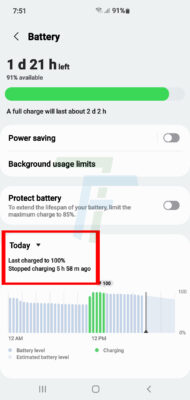
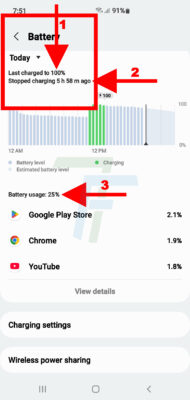
The Activity:4 informs the user that when this battery is charged, it was charged to 100%.
And the Activity:5 tells that the charging activity was stopped 5 hours and 58 minutes ago.
Activity:6,7,8
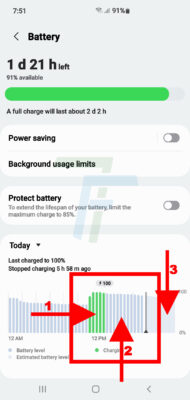
This step explains the functioning of the charging activity of the battery with graphics.
Activity:6 explains the charging activity continued today around 12 PM.
Activity:7 demonstrates, graphically, that the charging facility was utilized a little below 25%.
And Activity:8 informs the user about the availability of the battery charging is continued for the time being.
Activity:9
Activity:6 shows that battery level is coming down but very slowly, i.e. mobile OS is currently consuming the battery very slowly. Till now, the battery usage is only 25%, i.e. still 75% battery is available for the usage by the user for the calling and other misc. tasks.
Activity:10,11,12
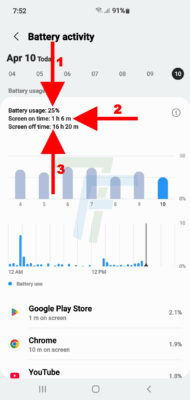
All the 3 activities, Activity 10, 11 & 12 displays the battery usage during Today.
Activity:10 shows that the total battery usage Today, APR 10, was 25%.
Activity:11 informs the user that usage duration of the battery while the Screen of the phone was On was 1 hour and 6 minutes.
Activity:12 displays that Screen usage today while the Screen was Off, was 16 hours and 20 minutes.
Activity:13 & 14
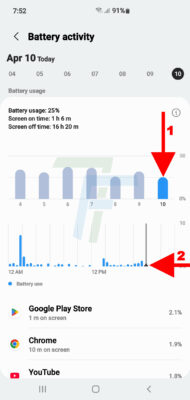
Activities 13 & 14 displays the battery usage for Today.
Activity:13 informs the user, graphically, that Today, 25% of the battery was consumed.
Activity:14 tells the user the different timings, graphically, when the battery was used by the phone.
Remember!
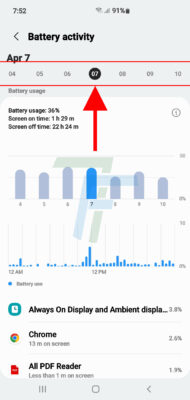
All these described battery activities are related to battery status for Today, i.e. APR 10 when the screenshot was taken. But, the user may also check battery status for the last week, i.e. for the7 days. Just press the day and get details about the miscellaneous battery activities for that day.
This screenshot was taken when the day was set to APR 7.